

Now Reading: Common FAB Registration Issues and How to Fix Them
-
01
Common FAB Registration Issues and How to Fix Them

Most FAB app registration problems fall into five categories. Invalid PIN. OTP not arriving. Biometric failure. App crashes. Login loop. Every issue has a fix. Most fixes take under five minutes. For a smooth, fab check balance experience, registration needs to work first. This guide covers each problem and the solution. No fluff. Just fixes.
Issues facing:
Following issues the user can face:
Issue 1: Invalid PIN Error
What happens: The app says “Invalid PIN” after entering the 4-digit code.
Why it happens: Two different PINs exist. One for store purchases. One for ATMs. The app wants the purchase PIN.
How to fix it:
Enter the 4-digit PIN used for buying things in shops. Not the 6-digit ATM PIN.
Forgot that PIN? Visit any FAB branch. Bring the debit card and Emirates ID. Ask for a PIN reset.
Already have online banking? Skip debit card registration. Tap “Login” instead. Use the existing username and password.
Issue 2: OTP Not Arriving
What happens: The app says “OTP sent.” But the message never shows up.
Why it happens: Wrong mobile number in bank records. Network delays. Phone spam filters are blocking the message. Prepaid credit too low.
How to fix it:
Wait 60 seconds. Tap “Resend Code.” Do not tap more than three times.
Restart the phone. This clears network glitches.
Check the spam or blocked messages folder. Some phones hide shortcode messages.
Check prepaid credit. Some carriers block SMS when the credit runs out.
Still no OTP? The mobile number on record is likely wrong. Visit a FAB branch. Bring the debit card and Emirates ID. Update the contact number. Then try registration again.
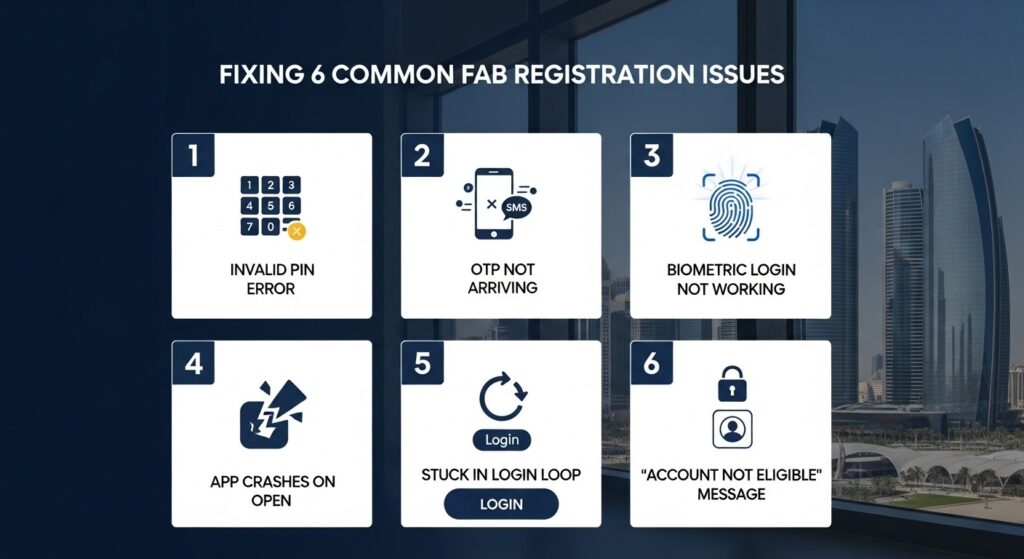
Issue 3: Biometric Login Not Working
What happens: Fingerprint or face ID is set up. But it fails to work. The app asks for a password instead.
Why it happens: The phone software updates reset permissions. App update changed settings. Fingerprint not registered on the phone at all.
How to fix it:
First, check phone settings. Go to Biometrics or Security. Make sure fingerprint or face ID is allowed for the FAB app. Some phones need per-app permission.
Second, re-register biometrics inside the app. Log in using the password. Go to the menu. Tap Settings. Tap Security. Tap Biometric Login. Turn it off. Turn it back on. Scan fingerprint or face again.
Use password login as a backup while troubleshooting. That always works.
Issue 4: App Crashes on Open
What happens: The app opens, then closes by itself. Or crashes when entering registration details.
Why it happens: Outdated app version. Outdated phone software. Corrupted app cache. Phone storage is full.
How to fix it:
Open App Store or Play Store. Search “First Abu Dhabi Bank.” If “Update” shows up, tap it.
Restart the phone. This clears temporary files and resets connections.
Clear app cache. On Android: Settings > Apps > FAB > Storage > Clear Cache. On iPhone: Settings > General > iPhone Storage > FAB > Offload App. Then reinstall.
Check phone storage. Delete unused apps or old photos if storage is low.
Last resort. Uninstall the app completely. Download it fresh from the official store.
Issue 5: Stuck in Login Loop
What happens: After entering credentials, the app goes back to the login screen. No error message shows.
Why it happens: Session token error. The app thinks the user is both logged in and logged out.
How to fix it:
Force close the app. On iPhone, swipe up from the bottom and flick the app away. On Android, tap the square button and swipe the app away. Open again.
Clear app cache. Android: Settings > Apps > FAB > Storage > Clear Cache. iPhone: Offload the app.
Reset the password. Tap “Forgot Password” on the login screen. Enter the registered mobile number. FAB sends a reset link by SMS. Create a new password. Try logging in again.
Issue 6: “Account Not Eligible” Message
What happens: The app shows “Account not eligible for mobile banking.”
Why it happens: The account type does not support mobile registration. Account has a block or freeze. The account is brand new and not yet activated.
How to fix it:
First, make sure the account is active. Try using the debit card at an ATM.
Call FAB customer service. Ask if the account is eligible for mobile banking. Some account types need branch registration first.
Visit a FAB branch. Bring the debit card and Emirates ID. Ask a staff member to activate mobile banking access. After activation, wait one hour. Then try the app again.
Quick Fix Summary
| Problem | Most Likely Fix |
| Invalid PIN | Use 4-digit purchase PIN |
| OTP not arriving | Restart phone. Check spam. |
| Biometric fails | Re-register in app settings |
| App crashes | Update the app. Restart phone. |
| Login loop | Force close. Clear cache. |
| Not eligible | Call customer service |
When to Call FAB Customer Service
Some problems need a phone call. Not everything can be fixed through the app.
Call customer service in these situations:
- The mobile number on record is wrong. OTP never arrives.
- PIN is completely forgotten and cannot be reset online.
- Account shows “Not Eligible”, and a branch visit is not possible.
- The app works, but the balance or transactions are missing for more than 48 hours.
Have the debit card and Emirates ID ready before calling. The agent will ask for verification.
FAB customer service number within the UAE: 600 52 5500.
Frequently Asked Questions
Q1: Why does the app say “Invalid PIN” when the ATM PIN works?
The app wants the 4-digit purchase PIN. The ATM uses a different 6-digit PIN.
Q2: How many times can OTP be requested?
Three times within 10 minutes. After that, wait 30 minutes.
Q3: Biometric login worked before. Why did it stop?
Phone software updates often reset app permissions. Re-enable biometrics in app settings.
Q4: App crashes after update. What to do?
Restart the phone. If that fails, uninstall and reinstall the app.
Q5: How long does account activation take after a branch visit?
Usually one hour. Sometimes up to 24 hours.
Conclusion
FAB registration issues are annoying but fixable. Most take less than five minutes.Invalid PIN? Use the 4-digit purchase PIN. OTP not arriving? Restart the phone. Biometric failing? Re-register in settings. App crashing? Update it. Login loop? Clear cache. Not eligible? Call customer service.Keep the debit card and Emirates ID nearby when troubleshooting. For issues that do not resolve within 24 hours, call FAB customer service or visit a branch.Once registration is complete, a quick fab check balance takes under 10 seconds. Download the app. Fix any issues. Start checking.